
Manage Your Entire Smart Lock Fleet by Just Asking: The KoreLock MCP Server Is Live
Updated: 18 hours ago

The KoreLock MCP server is live. Connect it to Claude Desktop, Claud Code, ChatGPT, or ChatGPT Codex, and you can analyze and manage your entire lock fleet by just asking.
What's the KoreLock MCP server, anyway?
AI assistants like Claude and ChatGPT are good at answering questions, crunching numbers, and writing things up. But on their own, they can't see your lock data. They don't know which doors you have, who opened them, or which batteries are running low.
An MCP server fixes that. MCP (Model Context Protocol) is an open standard that lets AI assistants connect to other software. Think of it as a universal adapter: one standard plug that any compatible AI can use.
The KoreLock MCP server gives the AI tools it can use on your behalf, like "list locks," "read lock events," or "update lock settings." You ask a question in plain English. The AI figures out which tools to use, pulls live data from KoreLock, and answers. No code, no API keys to manage, and no new software to learn.

Why connect AI to your locks?
You already have a dashboard. So why add AI? Because a dashboard only answers the questions it was built to answer. Here's what changes:
Ask anything, get answers instead of exports. "Who used the gym most last month?" doesn't need a report someone built ahead of time. Just ask.
See patterns across every lock at once. The AI can review hundreds of locks and thousands of events together and flag what stands out.
Charts and summaries on demand. Need something for an owner meeting? Ask for the chart, the summary, or both.
Bulk changes in one sentence. Grant access to 55 doors or standardize a setting across 48 locks with a single request instead of an afternoon of clicking.
No training required. If you can describe what you want, you can do it. That makes the platform usable for everyone on your team, not just the power users.
It works with your other tools. If you've also connected your email, calendar, or work order system, the AI can combine them, like turning a list of low batteries into maintenance tickets.
And you stay in control the whole time. More on that next.

First, the guardrails
AI and access control in the same sentence should raise a few eyebrows. So here's how we built it:
No unlocking, ever. The connector can't unlock a door. That's not a setting; the server simply can't do it.
No deleting locks. You can register and rename locks, but AI can't remove them.
You choose the permissions. You can set each connection to allow or deny specific actions. Want read-only analytics? Done.
Secrets stay hidden. PINs, card numbers, and keypad programming codes are masked unless someone explicitly asks to reveal them.
Claude confirms before it changes anything. You'll see this in every write example below.
See it in action
To show you what it can do, we set up a fictional multifamily portfolio with two properties:
Riverstone Commons: 48 units (doors 101 through 412), plus a Main Lobby, Garage Entry, Package Room, Fitness Center, Pool Gate, Leasing Office, and Maintenance Room.
The Hollis Lofts: 32 units with a similar set of shared doors.
Below are six things you can do with it today: three that read your data and three that write changes at scale.
Note: All names, units, and data below are fictional, created for this demo.
1. See how your doors are actually used
Which amenities do residents use, and when? That question used to mean exporting data and spending an afternoon in Excel.
The prompt: "Show me entries by door at Riverstone Commons for September, and when the Fitness Center is busiest."
Claude pulls access events for every shared door, ranks them, and breaks down the Fitness Center by hour. The gym peaks between 6 and 8 a.m., and the Package Room gets more traffic than the Main Lobby.

You can also slice it by person: "Who are the 10 most frequent Pool Gate users?" Useful for staffing, amenity planning, and showing owners what their amenities are worth.
2. Spot the unusual stuff
You don't always know what you're looking for. So ask Claude to look for you.
The prompt: "Flag anything unusual at Riverstone in the last two weeks."
Claude comes back with three things worth a look:
A Leasing Office entry at 2:47 a.m. using a staff credential.
Nine denied PIN attempts at unit 214 in under 10 minutes.
The Pool Gate was held open for 14 minutes on a Saturday night.

None of these are necessarily a problem. But now you know about them, and you can ask follow-ups like "Has that staff credential been used after hours before?"
3. Check the health of every lock at once
A dead battery is a lockout call waiting to happen. Better to find it first.
The prompt: "Give me a health report for every lock in the portfolio."
Claude checks all 95 locks and sorts out what needs attention: 6 batteries under 20%, 2 locks offline, 3 with setting changes still waiting to sync, and 4 running older firmware than the rest.

So maintenance gets a short, specific to-do list instead of a Sunday surprise.
4. Give a vendor access to a whole property
Now for the write side. Adding one person to 55 doors is a lot of clicking... or one sentence.
The prompt: "Give Marcus Bell from Bellwether HVAC access to every lock at Riverstone, weekdays 8 to 5."
Claude finds the weekday schedule, lists the 55 locks, and asks before doing anything. You say yes, and Marcus is set up everywhere.
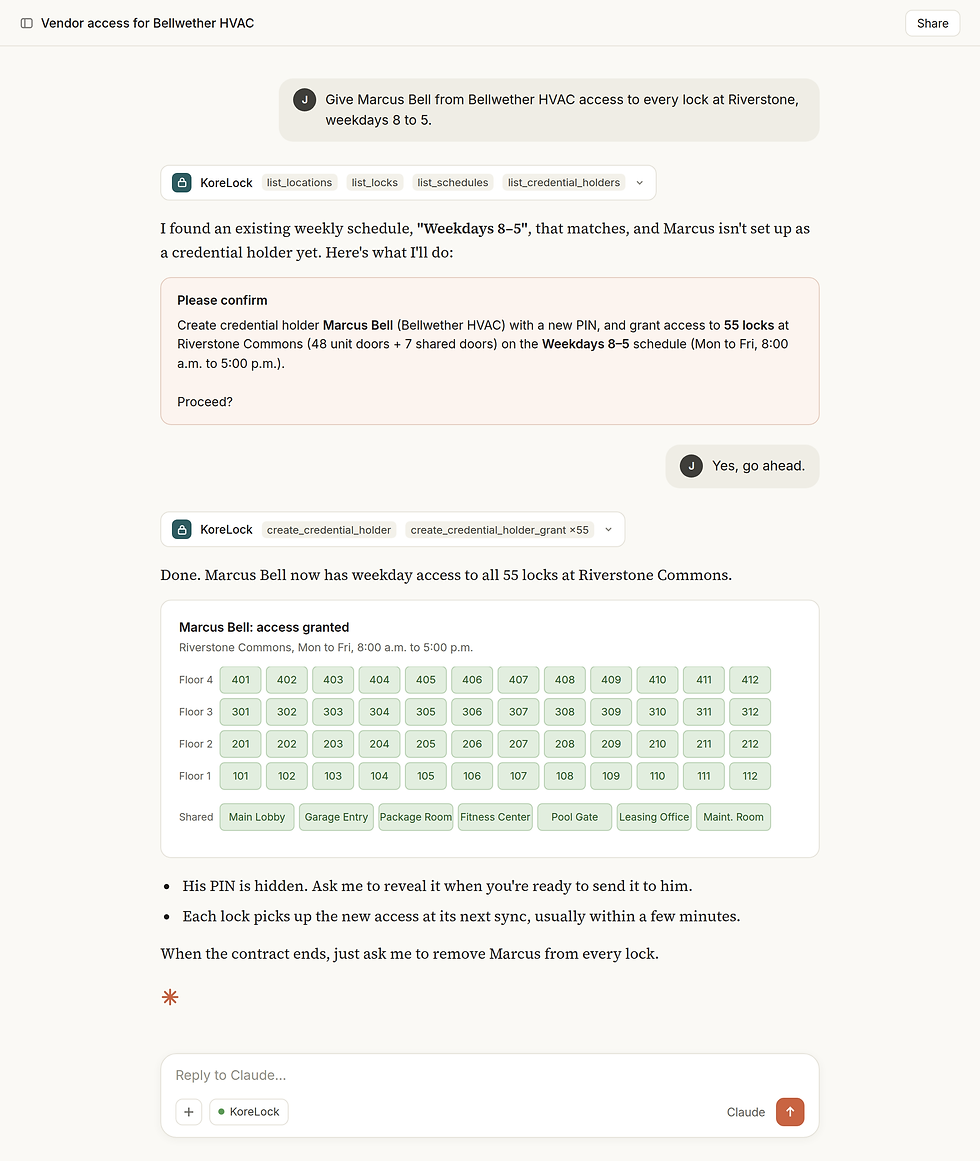
And when the contract ends: "Remove Marcus Bell from every lock." Done. No forgotten grants hanging around.
5. Change a setting across the fleet
Settings tend to drift over time. One door gets changed for a resident, another gets installed with different defaults, and before long no two doors behave the same. A common example: auto-lock, which relocks the door a set number of seconds after it's unlocked.
The prompt: "Turn on auto-lock for every unit door at Riverstone, and set it to lock 10 seconds after unlocking."
Claude checks the current values first. 22 doors already match, 17 relock after 30 seconds, and 9 have auto-lock turned off entirely (so they stay unlocked until someone locks them by hand). Claude shows you the 26 doors that will change and asks if you want to proceed. Once you confirm, it updates them and tells you which ones will pick up the change at their next sync.

The same works for keypad lockouts, door-ajar alarms, beeps, and the rest of the lock settings.
6. Hand out temporary codes for turnovers
Turnover week means cleaners, painters, and carpet crews, each needing access for a few hours.
The prompt: "Create SmartPINs for the Sparkle Pro cleaning crew on units 108, 215, and 311, Thursday 9 a.m. to 3 p.m."
Claude confirms the units and time window, then creates a code for each door. Each one automatically stops working at 3 p.m., so there's nothing to clean up afterward (pun intended).

Note: The PINs themselves stay hidden in the response. Ask Claude to reveal one when you're ready to share it with the crew.
Security FAQ
We know security is the first question on most people's minds, so here are straight answers.
Can the AI unlock a door?
No. The KoreLock MCP server has no unlock capability, so no prompt, setting, or trick can make it open a door. It also can't delete locks.
But can't it give someone a code, which is basically the same thing?
Fair question. Yes, if you allow it. Creating SmartPINs and granting access are write actions, and they're only available if the connection is set up to allow them. Want a connection for analytics only? Make it read-only, and Claude can't change anything. When write actions are on, Claude confirms the details with you before it makes the change.
What if someone tries to trick the AI?
This is called prompt injection: hidden instructions planted in an email, document, or web page that try to get the AI to do something you didn't ask for. It's a real risk across the AI industry, not just for locks. Our defenses:
Permissions that limit what each connection can do from the start.
Confirm changes before they happen, so you see exactly what's about to happen.
No unlock capability at all.
Our advice: read confirmations before you say yes, and only enable write access where you need it.
Who can use the connector?
Only admins. And each connection can be customized to allow or deny specific actions, so an admin can give a property manager read-only analytics without the ability to change anything.
Is there a record of what the AI changed?
Yes. Changes made through the connector show up in the same history as changes made in the KoreLock app, under the admin who made them. Today they aren't labeled separately as AI-made.
What data does the AI see?
Only what it asks KoreLock for while answering your question, like lock status or access events. It masks PINs, card numbers, and keypad programming codes unless someone explicitly asks to reveal them.
Once data reaches your AI assistant, that provider's privacy policy applies, not ours. So review it before connecting, the same as you would for any third-party service. Our own practices are in the KoreLock Privacy Notice.
How do I know I'm connecting to the real KoreLock server?
Only connect using the official address on our setup page. Unofficial "MCP servers" for various products have popped up online, and at least one has been caught stealing data. If it didn't come from korelock.com, don't use it.


